
Display modes & triggers
Choose how a form appears, when it opens, and how often a returning shopper sees it.
How a form shows up on your storefront — and how persistent it is — matters as much as what's inside it. This guide covers the four display modes, the triggers that open a form, what happens when a shopper closes it, and frequency (how often a returning shopper sees the form again).
Placement lives in the builder inspector's Form scope; everything else here lives in the Settings sheet (title bar) under the Trigger, Frequency, and Dismiss Behavior tabs.
For the small clickable prompt that invites a shopper to open the form instead of showing it outright, see Teasers.
Display modes
Every form has exactly one of four display modes:
| Display mode | What shoppers see |
|---|---|
| Popup | A centered modal over a dimmed backdrop. You control the backdrop color and opacity. |
| Slide-in | A panel anchored to the bottom-left or bottom-right corner of the page. |
| Full Page | A takeover that fills the whole viewport. |
| Inline | Embedded in the page itself, placed through the Shopify theme editor as an app block. |
A form can also carry a separate mobile display mode: when you pick Popup, Slide-in, or Inline while creating a form, Formtoro sets the phone experience to Full Page by default — most popups read better as a takeover on a small screen. The Settings sheet shows both values under the Trigger tab's placement summary.
Inline forms behave a little differently
Because an inline form sits where you placed it in your theme, it doesn't sneak up on anyone — so Formtoro deliberately skips the popup machinery for it:
- Frequency caps don't apply. A merchant-placed section shouldn't vanish.
- Only the After delay trigger applies. Scroll, exit intent, cart value, and page views are popup behaviors; an inline form appears on load (or after its delay). On click (launcher) works too, paired with a launch button on the same page.
- Audience rules fully apply. An ineligible visitor sees nothing — the space simply collapses. See Audience filtering.
- The close button is off by default for inline forms (turn it on in the inspector if you want one), and a dismissed inline form collapses to the same floating teaser popups use.
Setup for the inline block lives in Going live.
Triggers
The Trigger tab decides when an eligible visitor's form opens:
| Trigger | Behavior |
|---|---|
| Show Immediately | Opens as soon as the page loads. The default for new forms. |
| After delay | Opens after a pause — pick a preset from 1s to 30s, or Custom seconds. |
| On scroll | Opens once the visitor scrolls past a percentage of the page (default 50%). |
| Exit intent | Opens when the visitor's cursor moves to leave the page. |
| Cart value | Opens once the cart total reaches your threshold (default $50). |
| After N pages viewed | Opens on the Nth page of the visit (default 3) — targets browsers, not bouncers. |
| On click (launcher) | Never opens on its own. A launch button you place in your theme opens it. |
Open on click instead of automatically
If you'd rather the shopper open the form by clicking a button — say a "Find my size" button right below your Buy Buttons — set the trigger to On click (launcher) and place a Formtoro Launcher block in your theme. The form loads and waits silently until the button is clicked. See Launch buttons for the full setup.
One coherence rule: a form with the On click (launcher) trigger can't have a teaser — the launcher is its entry point, so the Enable teaser toggle is locked while that trigger is selected.
Send dismissing subscribers to a step
The Dismiss Behavior tab has one setting, On dismiss: instead of Close (default), choose Go to step and pick a step (typically a coupon or offer step). When a shopper who has already submitted their email or phone tries to close the form, they're sent to that step instead — a last-chance nudge.
Guardrails, so nobody gets trapped:
- Subscribers only. It fires only after a submitted email or phone — a visitor who typed an email but never submitted closes normally.
- Fires once. The next dismiss closes the form normally.
- Still counts as a dismissal. Even though the shopper lands on your offer step, Formtoro durably records the close — the form won't reopen on later page views.
Whether the closed form disappears for the rest of the visit or shrinks back to a reopenable prompt is a separate choice — see when a shopper dismisses the form.
How often a form shows
The Frequency tab controls whether a returning visitor sees the form again. This is the setting merchants most often misread, so here's the full picture:
| Option | Behavior |
|---|---|
| Until subscribed | Keep showing until the visitor gives an email or phone. The default for new forms. |
| Until form completed | Keep showing until the visitor finishes the form (or explicitly closes its teaser). |
| Once ever | At most one appearance per browser, ever. |
| Once per session | At most one appearance per browsing session. |
| Every visit | Show on every eligible page load. |
| Custom interval | Show again only after Repeat every N days (default 7). |
Until subscribed — the default
A visitor counts as subscribed the moment they submit a step containing their email or phone — on any of your forms, even if they never finish the rest of that form. From then on, every form of yours set to Until subscribed stops appearing in that browser. The idea: never nag someone who already gave you their contact.
Formtoro remembers the subscribed state in the shopper's browser, scoped to your store, for about 6 months. Your audience rules — such as excluding existing Klaviyo subscribers — remain the durable, server-side way to keep known subscribers out beyond that window.
Until form completed
Choose this when finishing the form matters more than capturing the contact — surveys and quizzes, for example. The form keeps showing until the visitor reaches a true end state: completing the form, being redirected, or closing the teaser with its Allow full close control.
Two useful consequences:
- A visitor who gave their email mid-form but didn't finish keeps seeing this form so they can complete the remaining steps — and it resumes on the step where they left off, even across visits.
- Saving a new live version resets that resume point: mid-form visitors start again from step one (the form still shows; only their place is lost).
Good to know
- Eligibility comes first. A form only reaches the frequency check if the visitor matches its audience and the form is live.
- Frequency state lives in the shopper's browser, scoped to your store. In private browsing (where storage is blocked), the form simply shows on each eligible page load — the safe direction.
- Every visit and the impression-based options count an appearance when the form (or its teaser) is shown, not when it's opened.
Customer privacy
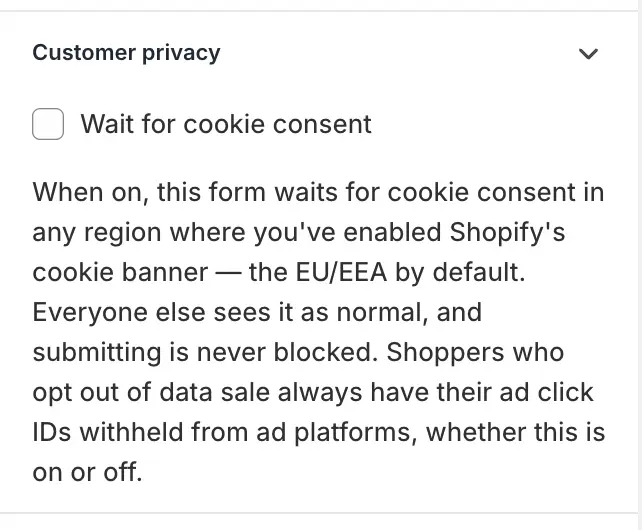
Off by default, set per form. When you turn it on, this form is held back from a shopper until they've consented to tracking, honoring Shopify's storefront Customer Privacy signals. It waits for cookie consent in any region where you've enabled Shopify's cookie banner — the EU / EEA by default, plus any other regions you've turned it on for in your privacy settings.
The moment such a visitor consents, a popup appears — same visit, no reload. (An inline embed appears on the next page load instead, since it's part of the page rather than an overlay.) Because a form that never shows records no impression, its analytics are held back too, and Formtoro drops the tracking identifiers it would otherwise store for that visitor.
Separately, and regardless of this setting: shoppers who opt out of data sale — California, Virginia, or a Global Privacy Control browser signal — always have their ad click IDs withheld from ad platforms.
Two guardrails so you don't lose conversions:
- It only hides the form for a shopper the consent signal actively reports as declined. Visitors whose region needs no consent see the form as normal — and if a shopper's browser or an ad-blocker hides the consent signal, or your store has no consent banner at all, Formtoro shows the form rather than guessing.
- Submitting is never blocked. Once the form is showing, a shopper can always fill it in.
Find it in a form's settings under Customer privacy. It only has an effect on storefronts that use Shopify's consent management — on a store with no consent banner, nothing changes. This is separate from your store-wide consent copy, which controls the SMS/email agreement text shown inside your forms.
Next steps
- Teasers — invite shoppers to open the form instead of showing it outright.
- Audience filtering — decide who is eligible to see a form.
- Launch buttons — open forms from a button in your theme.
- Going live — the app embed, inline blocks, and the "why isn't my form showing?" checklist.
- Building forms — design what's inside.