
Layout & responsive design
Wrap elements in containers, arrange them, float them, and fine-tune how they look on mobile vs desktop.
Formtoro forms look great on every screen by default — but when you want precise control, the builder gives you containers, layout controls, floating elements, and per-breakpoint overrides.
Mobile vs. desktop
The builder previews three breakpoints, selected from the toggle at the top of the canvas:
- 375 — Mobile
- 768 — Tablet
- 1024 — Desktop
The toggle changes the editing view; to click through the form on real device frames, use the interactive preview (⌘P).
Mobile is the base; wider screens override
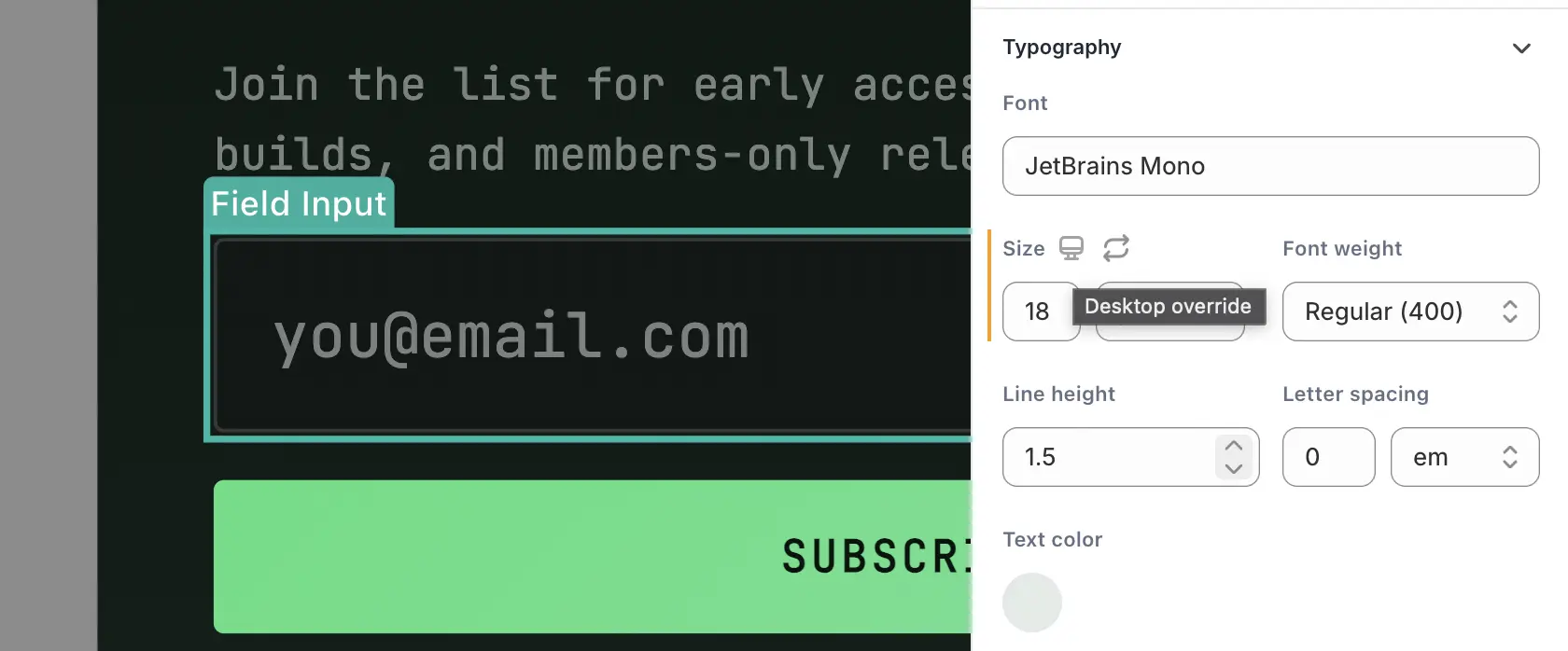
Formtoro is mobile-first, as is commonly done in responsive web design. The styles you set on Mobile (375) are the base — they apply everywhere unless a wider breakpoint overrides them. When you switch Desktop and change a property, you create an override that only applies at that width and above.
So the cascade is: Mobile → Tablet (≥768px) → Desktop (≥1024px), each layering on top of the last. If you only set padding on Mobile, every screen uses it. If you also set padding on Desktop, screens ≥1024px use the Desktop value and everything narrower keeps the Mobile value.
Editing, indicators, and resetting
- Switch to the breakpoint you want to style, then edit properties as usual.
- A property that has an override at the current breakpoint shows a small indicator dot next to it, so you can tell base values from overrides.
- Reset a property to clear it. On Mobile, reset removes the base value; on Tablet/Desktop, reset clears just that breakpoint's override and falls back to the inherited value.
Tip: design at Mobile first, get it right, then switch to Desktop only to adjust the few things that need more room.
Containers: group, arrange, and unlock layout
By default, elements stack vertically. To place elements side by side, control spacing and alignment, or float something, wrap them in a container.
How to wrap
In the Layers panel (left), right-click an element and choose Wrap in container. Formtoro creates a container in the element's place and moves the element inside it. You can then drag other elements into the same container.
Layout controls
Select a container to open its layout controls:
- Direction — Vertical, Horizontal, or Grid. Horizontal places children side by side; Grid lays them out in columns.
- Gap — the space between children.
- Distribution — how children are spaced along the main axis (start, center, between, around).
- Alignment — how children align across the other axis (start, center, end, stretch).
- Columns — for Grid direction, how many columns to use.
Because direction is a normal style, you can make it responsive: stack elements vertically on Mobile and switch to Horizontal on Desktop, so a layout that's comfortable on a phone opens up on a wide screen.
Floating elements
A container can be set to float, which positions it freely on top of the form rather than in the normal flow. Use floating for badges, decorative images, or accents layered over your content.
With Floating turned on, you also get:
- Position — where the floating container sits, set with a visual placement picker. Position can vary per breakpoint, so a badge can sit top-left on mobile and top-right on desktop.
- Layer order — whether the floating element sits behind, at the default level, or above other content.
Floating is a container feature — wrap the element you want to float first, then enable floating on the container.
Next steps
- Themes & styles — apply consistent colors and reusable styles.
- Display modes & triggers — how the form appears on the storefront.