
Brand colors
Your store's palette, and the swatches it feeds into every color picker in the builder.
Formtoro learns your palette once, then offers it everywhere you pick a color — so an on-brand form is a click away rather than a hex code you have to remember.
Set your palette
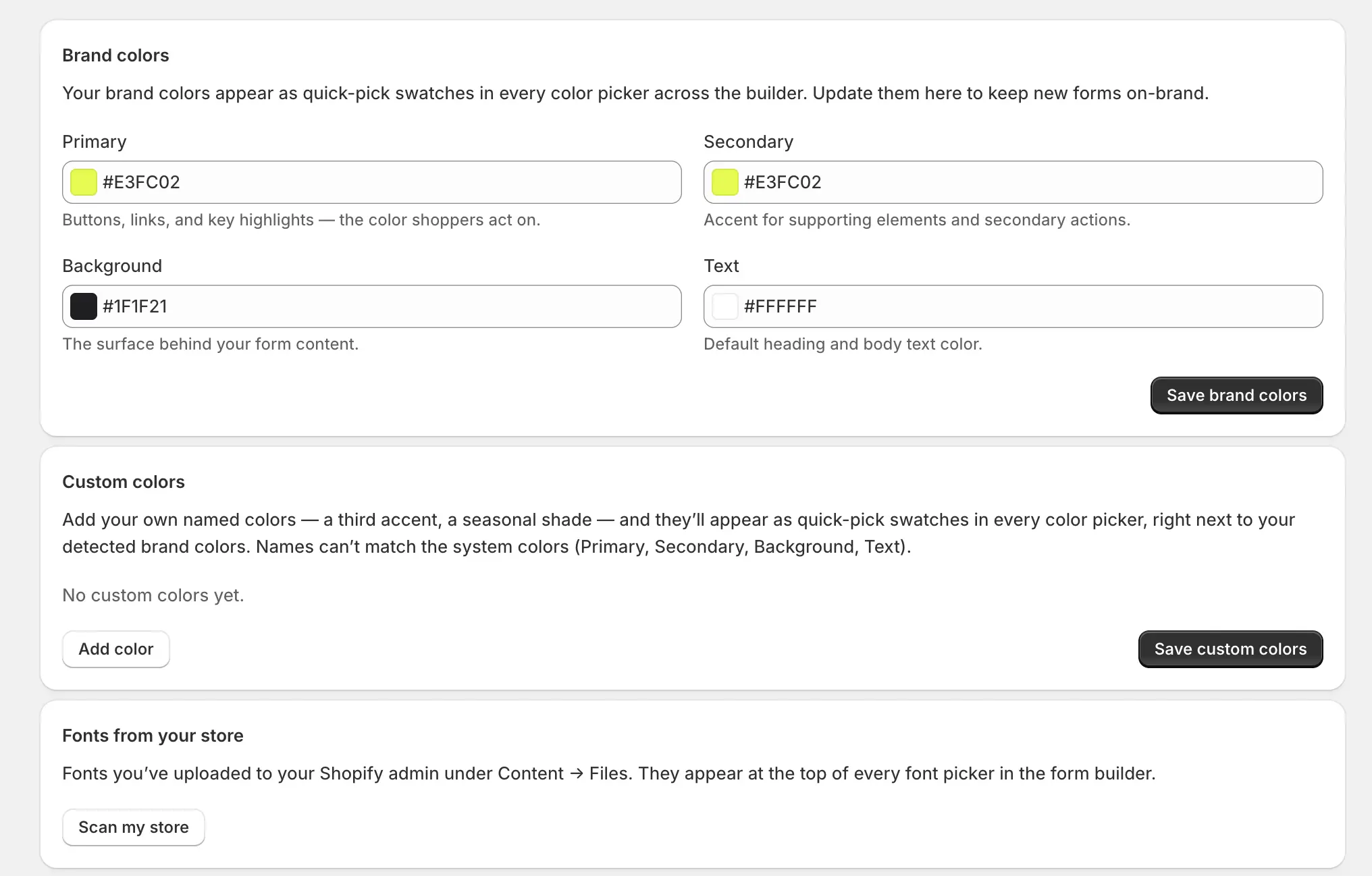
When you onboard, Formtoro detects your storefront's palette — Primary, Secondary, Background, and Text. Review and edit these in Settings → Branding & Themes, and add your own named custom colors alongside them. Everything you save here appears as quick-pick swatches in every color picker across the builder, so your exact brand hex values are always one click away.
On-brand from the very first step
The create-form wizard uses your brand before you've styled anything:
- The design gallery renders each template as a live preview with your brand layered on. Each design keeps its signature look — your brand accent and typography are applied only where they stay legible against that design's own background, so a preview is never unreadable.
- The color step then offers every palette as a live card, with your own custom themes listed first.
New forms come out looking like your store — the wizard is usually the fastest way to an on-brand starting point.
Next steps
- Custom fonts — bring your licensed typefaces into every font picker.
- Themes — apply a whole design system to a form.
- Themes & styles — how the layers stack.